
Navigating the Client Dashboard in Direct Advisory Suite
To open the Client Dashboard, do the following:
1. From the left navigation pane, click Clients & Groups.
- From here, you can filter the list of results by Client Type, Risk Tolerance Group, and Total Asset Value.
- Click the box next to a client to Delete or Export the record.
- Hover over a client name to activate the Actions icon, where you can edit, delete, or export the record.
2. Select a client or prospect name to open the Summary page of the Client Dashboard.

3. Click View Details to expand or collapse demographic information about the client.
4. Click the Pencil icon to edit Basic Details, Contact Information, or Groups.
Once you have access to the client dashboard, you may view any of the following.
Client Overview
The Client Dashboard, or Overview tab, allows you to see your client’s account at a bird’s-eye view. This screen allows for easy viewing of the client’s accounts, investment plans, and overall performance of their aggregated holdings.
Accounts:
- Click the + icon to create a new client portfolio.
- Lists all client accounts in order of Last Modified. This includes newly added or updated accounts.
- Supports single and multi-selection reflected in the main dashboard.
Investment Plans:
- Click the + icon to create new investment plans.
- Lists all the client’s available investment plans.
Main Dashboard:
This main panel displays analytics based on the accounts selected in the Accounts panel. By default it shows the aggregated view of last modified six accounts.
This includes:
- Risk alignment
- Asset allocation
- Investment quality
- Performance graph with time horizons
- Top 10 holdings
- Analytics update dynamically based on selection and aggregation status.
To change the portfolio selection, click the eye icon next to the portfolio’s name in the Accounts panel to either add or remove a portfolio. Then click the blue Recalculate button to update the screen.
To change the comparable index in the performance graph, click the pencil icon next to the index name list underneath the Accounts heading on the left side of the screen.
Manage Accounts & Portfolios
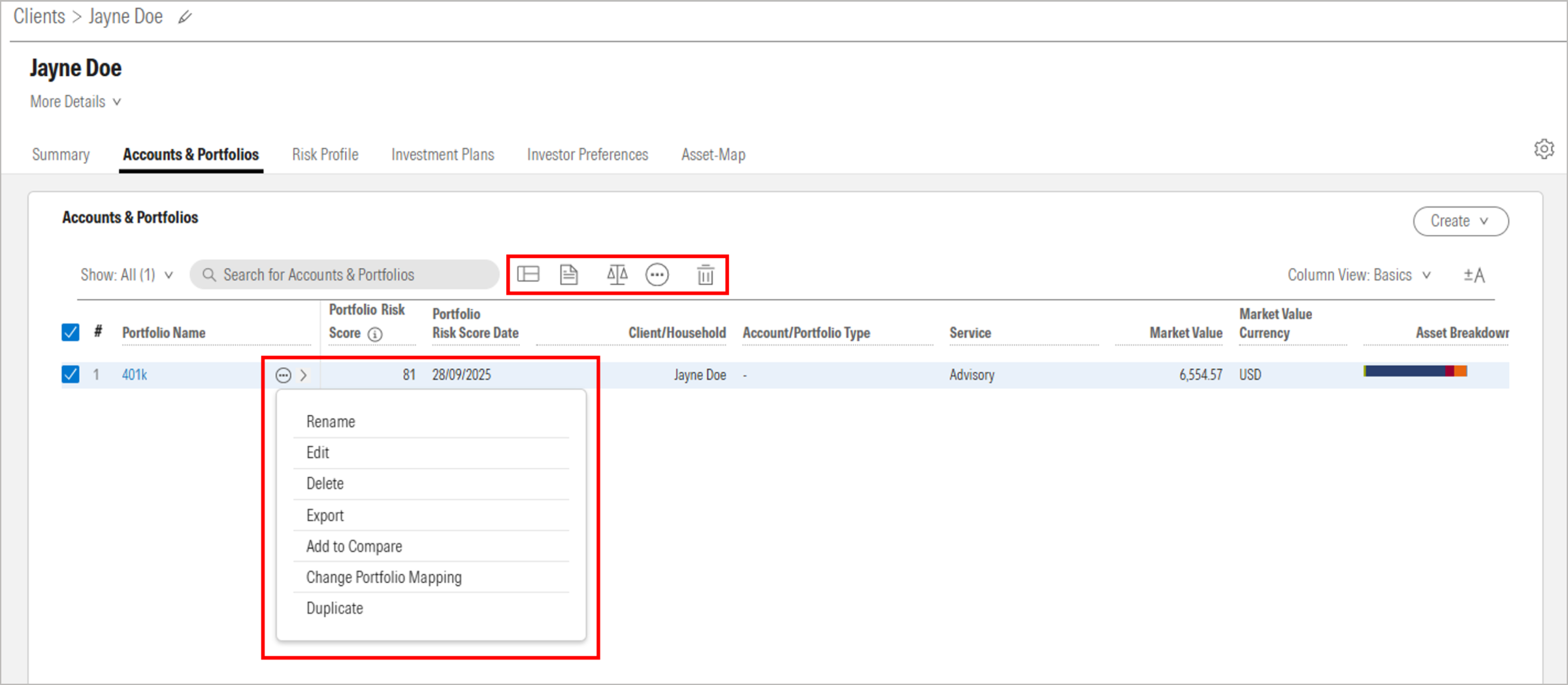
Once you click the Accounts tab, you can analyze an account with Analytical View, generate reports, compare portfolios with the Portfolio Compare tool, export data, delete account information, and change how you view account data.
Quick Portfolio Options:
- Hover over a portfolio name and click the Actions icon (Ellipses...). From here, select Rename, Edit, Delete, Export, Add to Compare, Change Portfolio Mapping, or Duplicate from the drop-down field.
Analyze a Portfolio:
- Click any portfolio name to analyze the account using Interactive Analysis, which includes the Portfolio Risk Score, asset allocation, investment performance, sector and region exposure, holdings, and more.
- Generate a PDF of this analysis by clicking the Reports icon in the upper right of the window in the Interactive Analysis or by checking the box next to the name of the portfolio in the grid view and clicking on the Reports icon.
- Click the carrot at the top left of the window to close this view.
Compare Multiple Portfolios:
- Select multiple portfolios by checking the box and click the Scales icon to get a comparison using the Portfolio Compare tool.
View Risk Profile
- Click Risk Profile to see your client’s current risk profile. This includes their Risk Group, their Risk Comfort Range, and Results Section. The results section for their risk group will show what they answered and how their answers align with or diverge from their risk tolerance group.

Manage Investment Plans
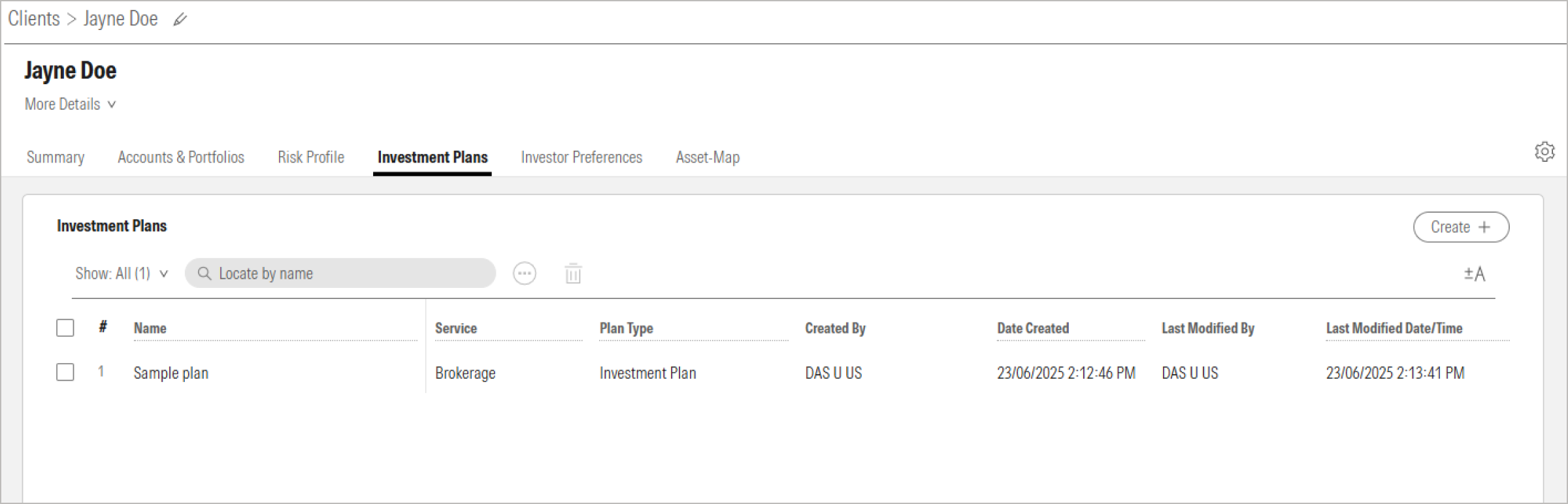
- Click Investment Plans to review or edit current investment plans, or to create new ones.
Reports
- Click Reports to view previously run client reports. At this time, this covers portfolio reports only.