
Getting started with demo portfolios
Available for new users, demo portfolios allow you to get comfortable with the Portfolio tool before adding your own investments.
This feature will launch soon.
New to Morningstar Investor? Our three demo portfolios—Big-Tech Stocks, Retirement Portfolio, and Taxable Brokerage—let you explore Morningstar’s analysis with holdings already in place. You can familiarize yourself with the tool before entering and tracking your own investments.
Demo portfolios are for demonstration purposes only and should not be considered investment recommendations.
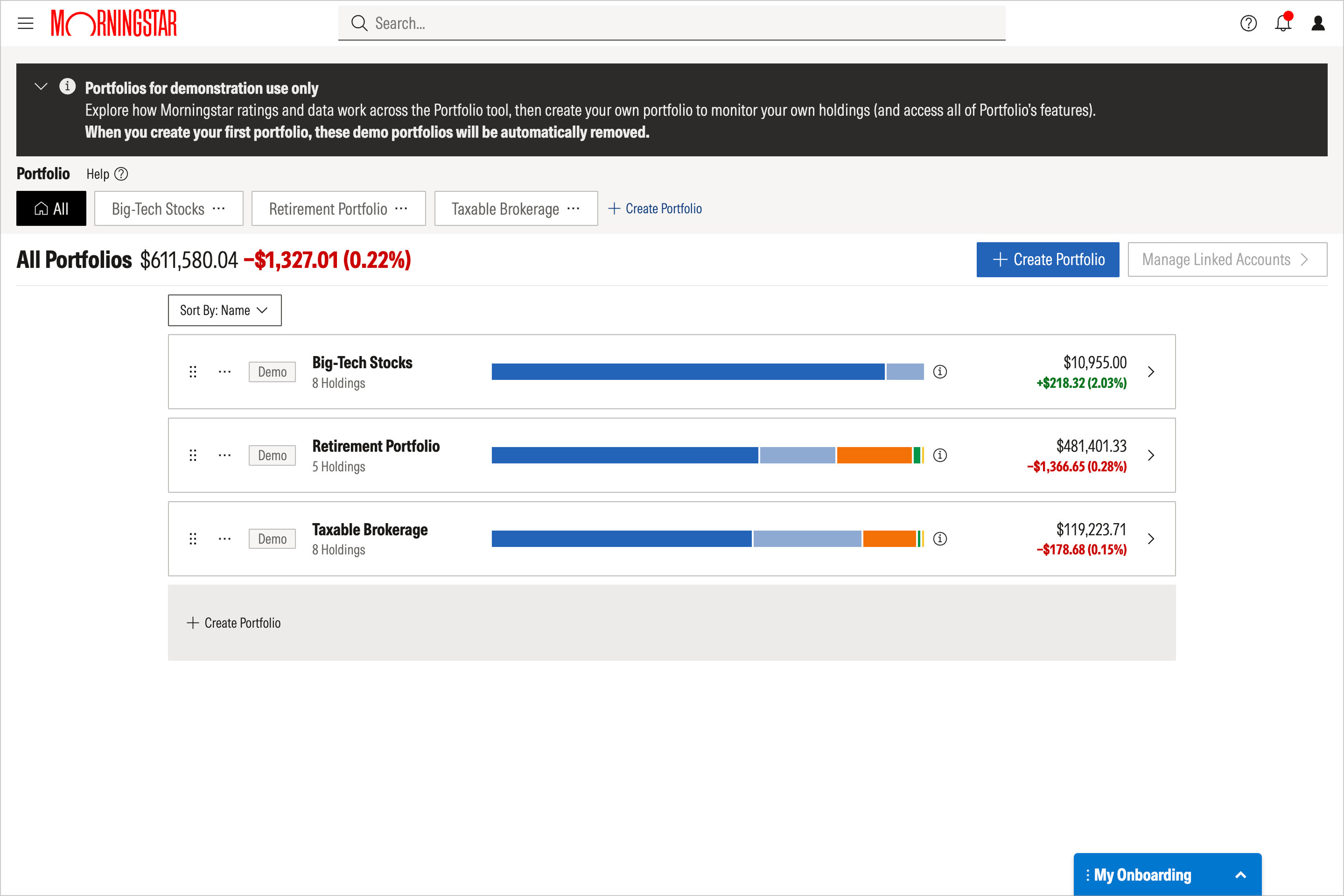
Explore individual holdings
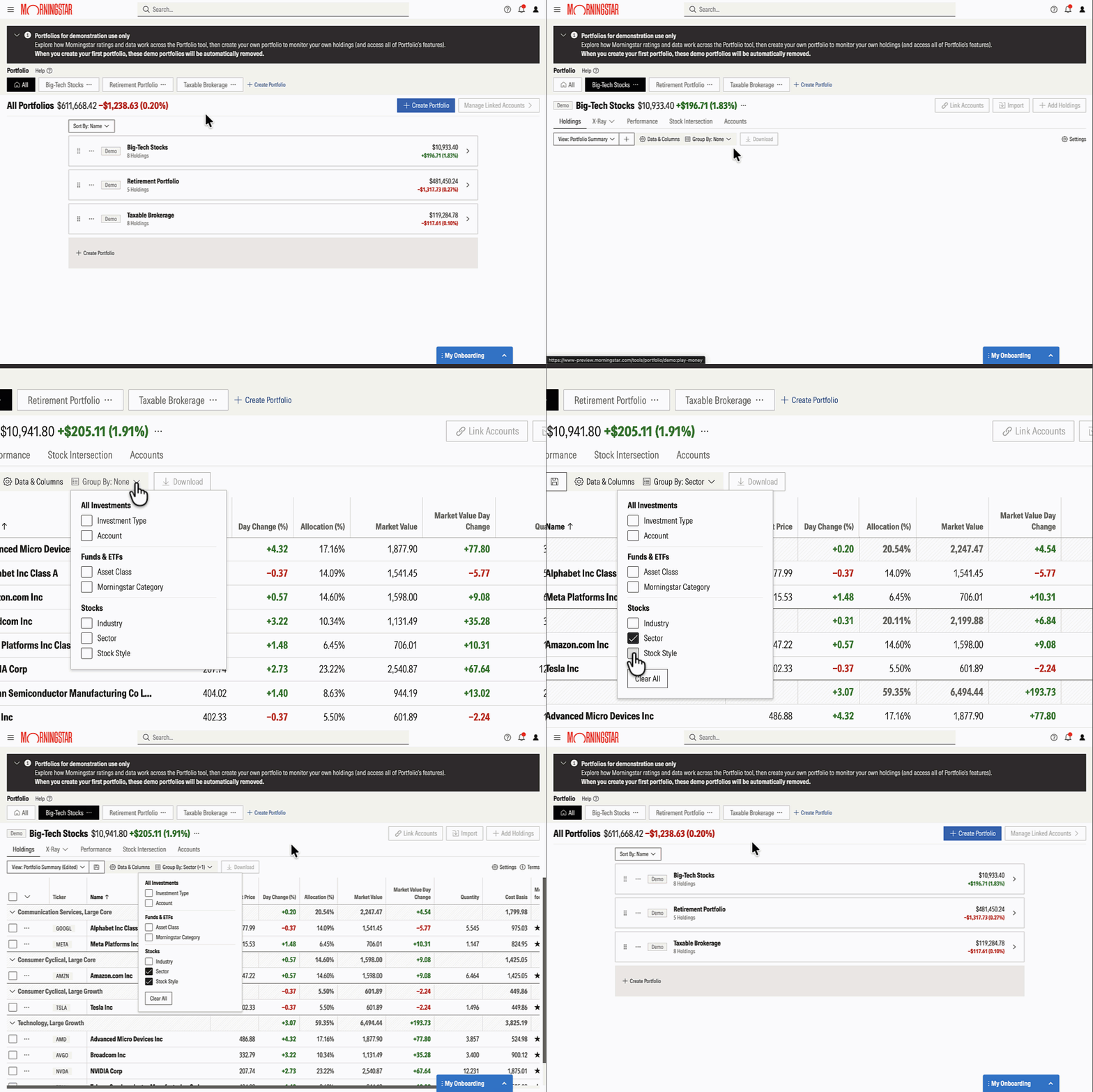
Open the Portfolio tool and select a demo portfolio. In the Holdings tab, use the View dropdown to switch among Morningstar’s pre-defined views. These views highlight different data points, helping you examine holdings from several angles. Explore ratings, performance, and other investment characteristics, and see how much each holding contributes to the portfolio’s total value.
You can also select Data & Columns to layer on additional data points that matter to you.
Alternatively, you can use the Group By dropdown to organize securities by different attributes.
See the bigger picture with X-Ray
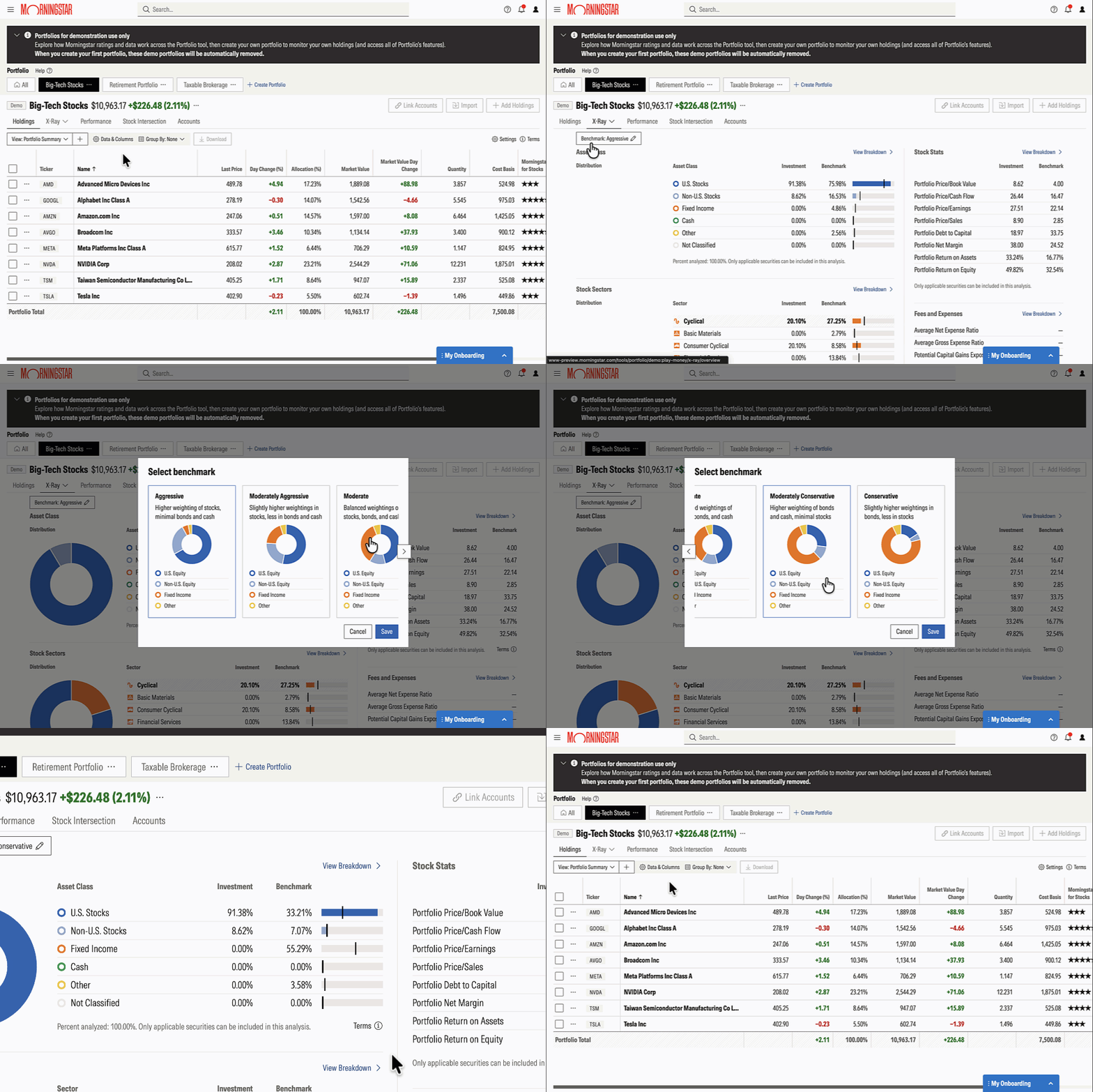
Select X-Ray to look beyond individual holdings and explore the portfolio’s overall investment mix, including the underlying investments held by its funds.
Set a benchmark and then review asset allocation, sector exposure, geographic exposure, and investment styles in relation to the benchmark that you set.
Try switching between demo portfolios to see how their compositions differ. For example, compare the sector exposure of Big-Tech Stocks with the Retirement Portfolio to see how concentration appears in the analysis.
Create your own portfolio when you’re ready
Once you’re familiar with the tools, select Create Portfolio to begin adding your own investments.
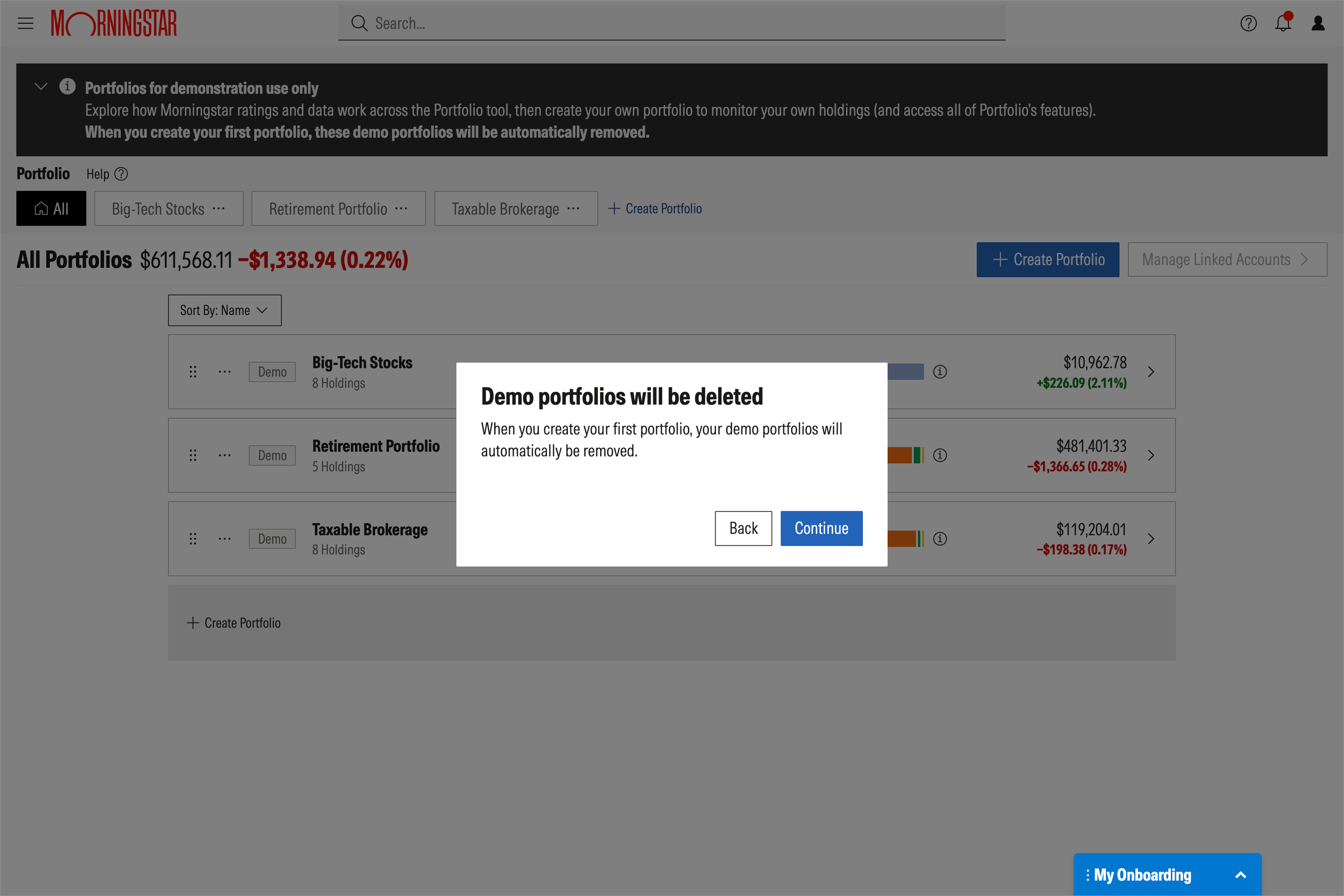
Creating your first portfolio automatically removes all three demo portfolios, and you will lose access to them. Explore the demos before taking this step.
When you select Create Portfolio, a message will remind you that the demos will be removed. Select Back to keep exploring or Continue to proceed with creating your own portfolio.

 United States