
Custom views (groupings of data points) in Portfolio
Keep track of the performance and valuation metrics relevant to both your portfolio and investment goals with data points that you return to again and again.
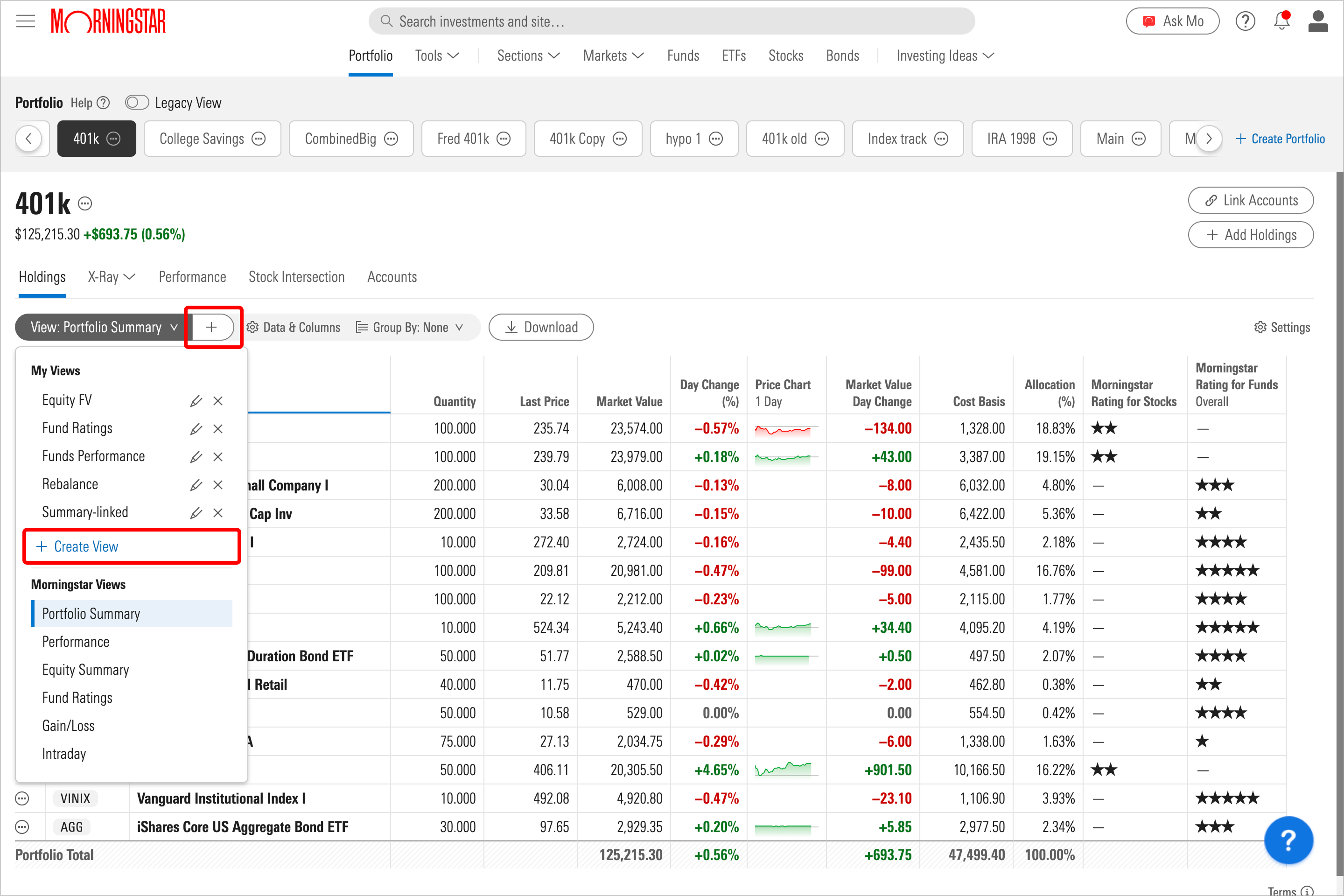
If you’d rather take control of the data points and filters shown on your portfolio's Holdings tab, you may prefer to create your own custom view. To do so, select the View drop-down menu, then select Create View under the My Views section. Alternatively, you can select the Create View (plus sign) icon next to the View drop-down menu.
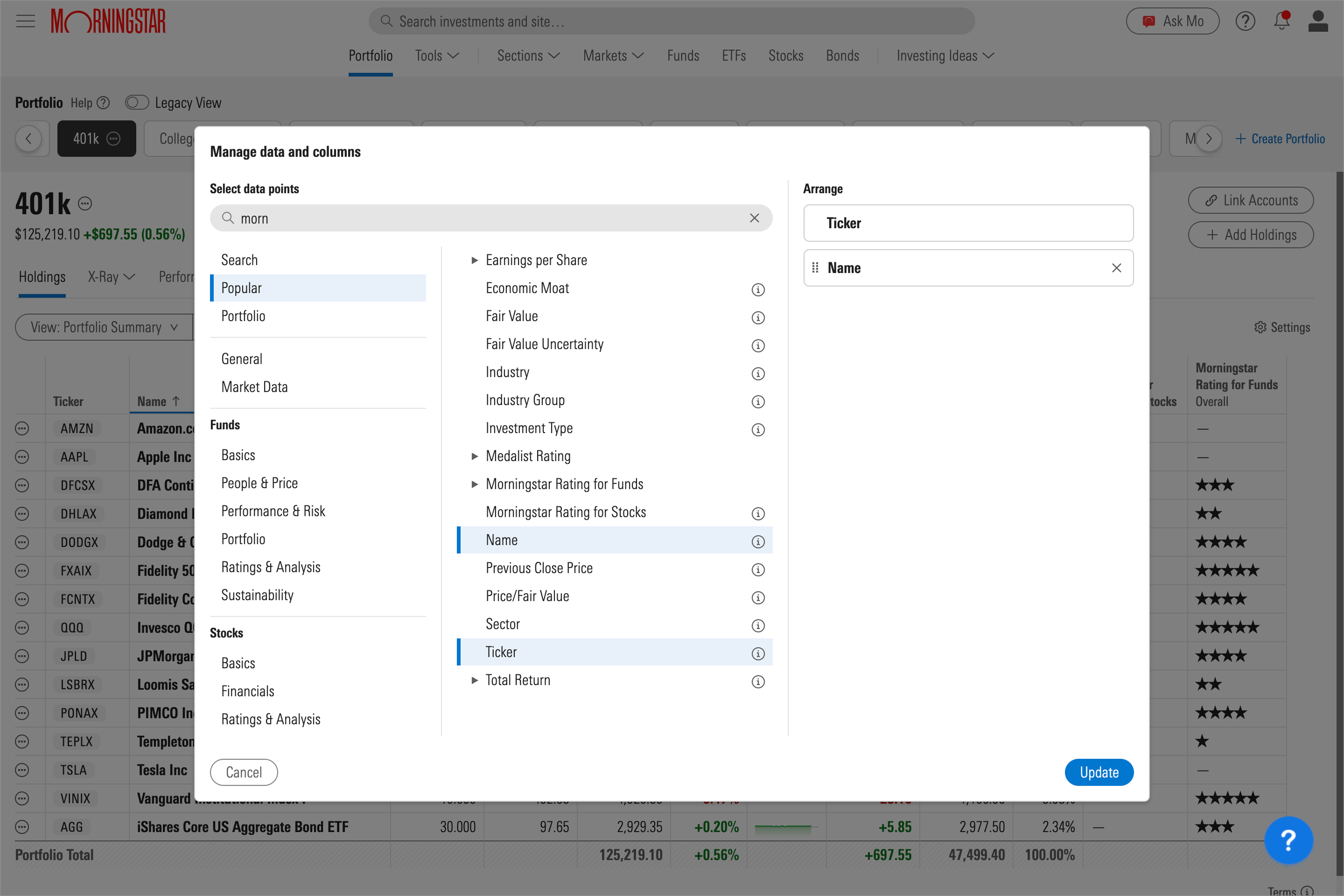
After giving your new view a name, you’ll then be presented with a menu that lets you select and deselect data points, as well as arrange columns in the order of your choice.
- The left panel displays data point groups.
- The middle panel shows the data points within each group.
- The right panel displays which data points will be shown in your view, and the order in which they’ll appear. You can drag and drop to arrange the columns according to your preferences.
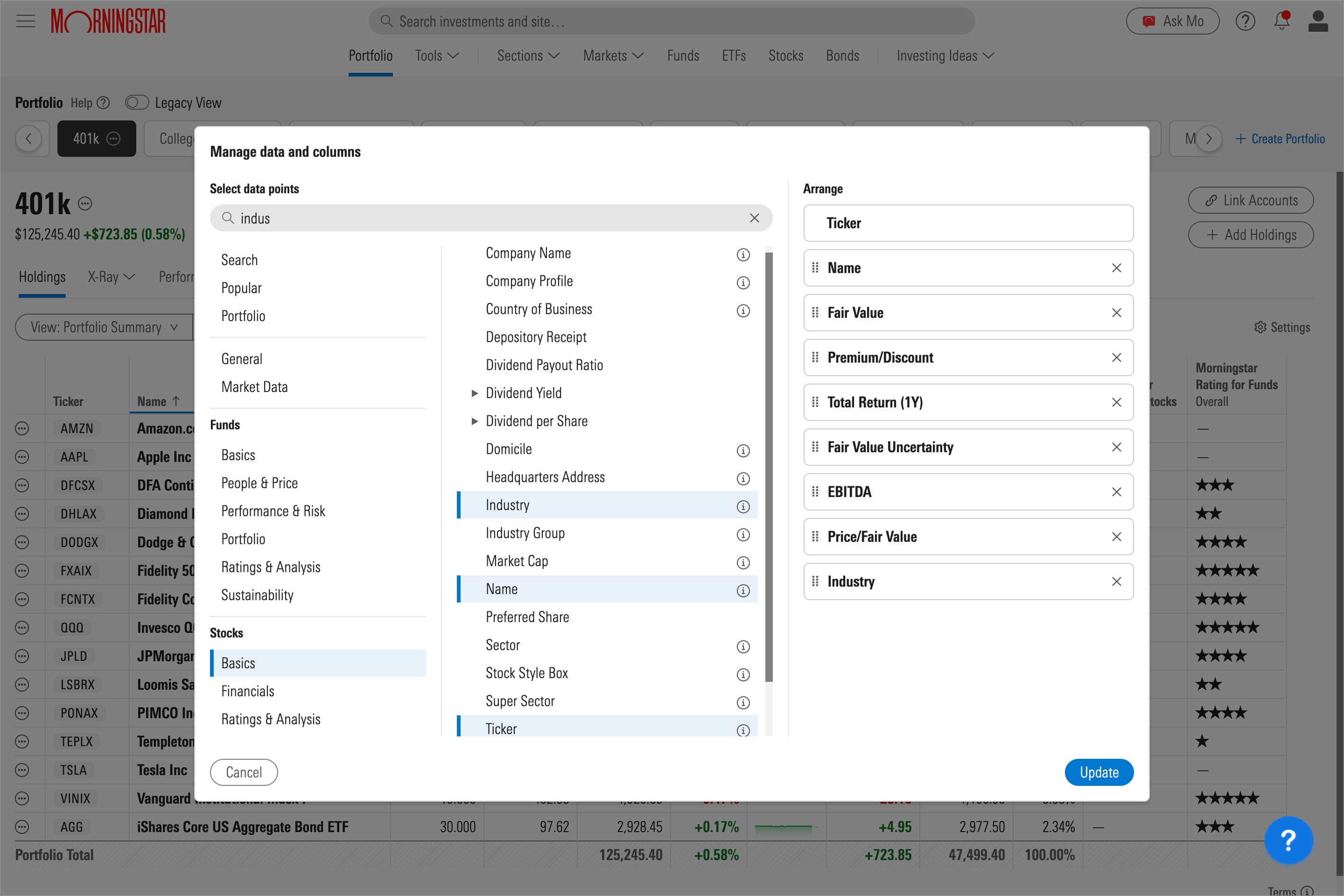
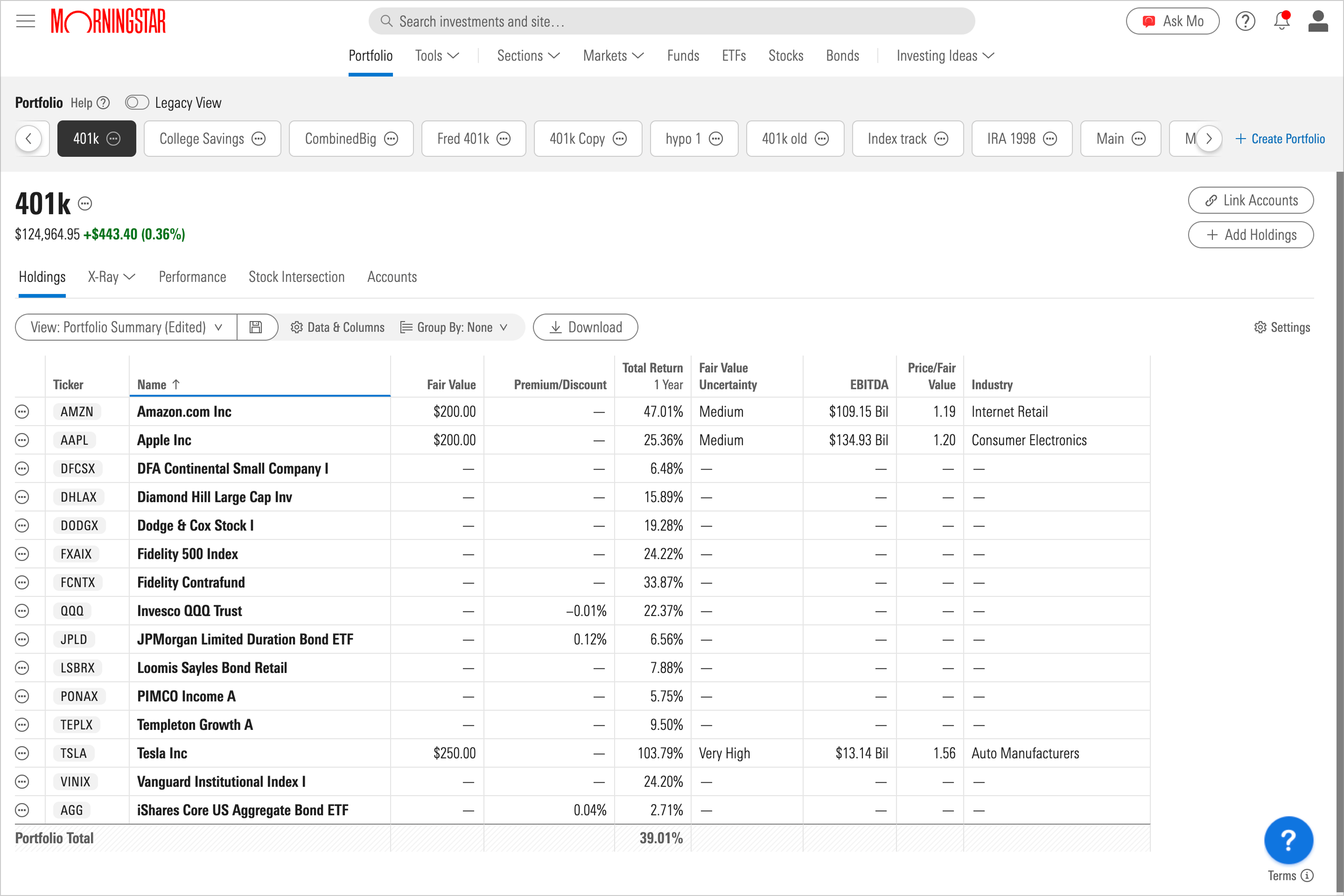
You can adjust the criteria shown in your custom view, as well as the order in which that data appears, at any time by selecting Data & Columns
Empty values in custom views
When you apply a custom view to the holdings in your portfolio, you may see empty values for data points. This may occur if the criteria you selected in your custom view don't match the holdings in your portfolio. For instance, if your portfolio contains a mix of stocks and funds, but your custom view pertains only to fund-related data, the stocks in your portfolio will appear with blank fields.

 United States