
Import Holdings to a Portfolio
Upload holdings to add securities to a new or existing portfolio.
In addition to manually entering holdings and linking accounts, the Import feature lets you quickly populate your portfolio from a variety of file types. Follow these steps and read on for important notes regarding the feature.
1. Select Import within a new or existing portfolio
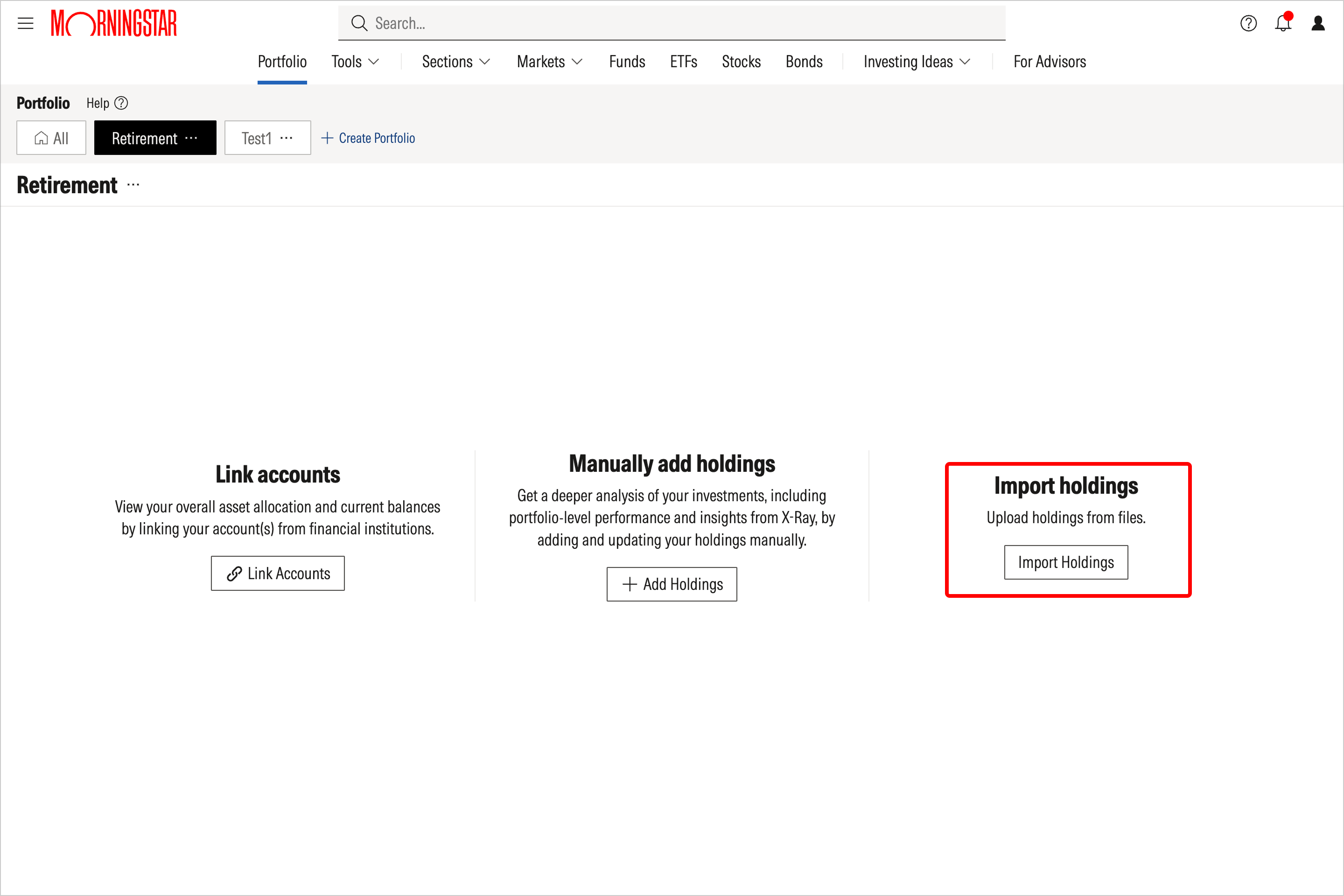
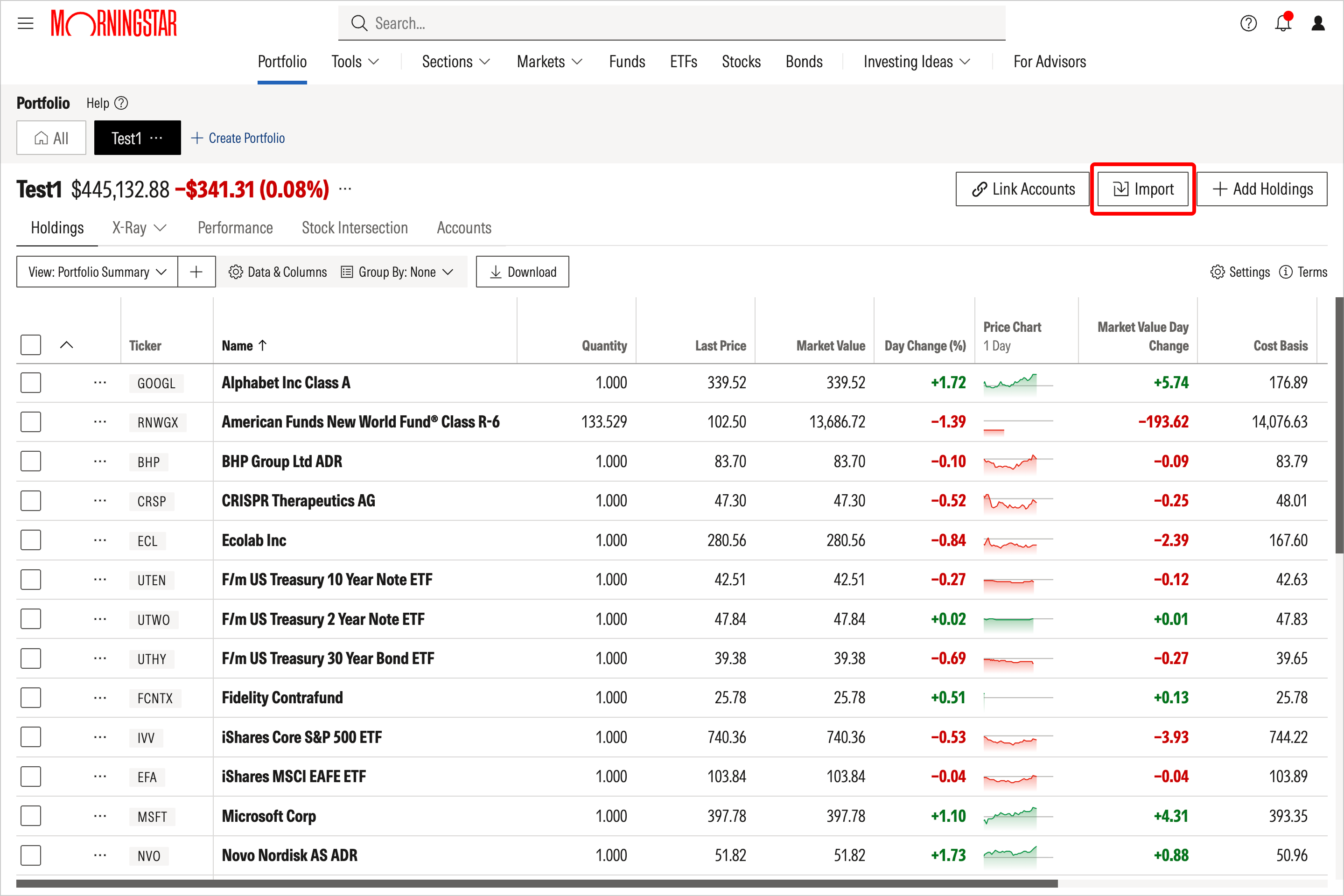
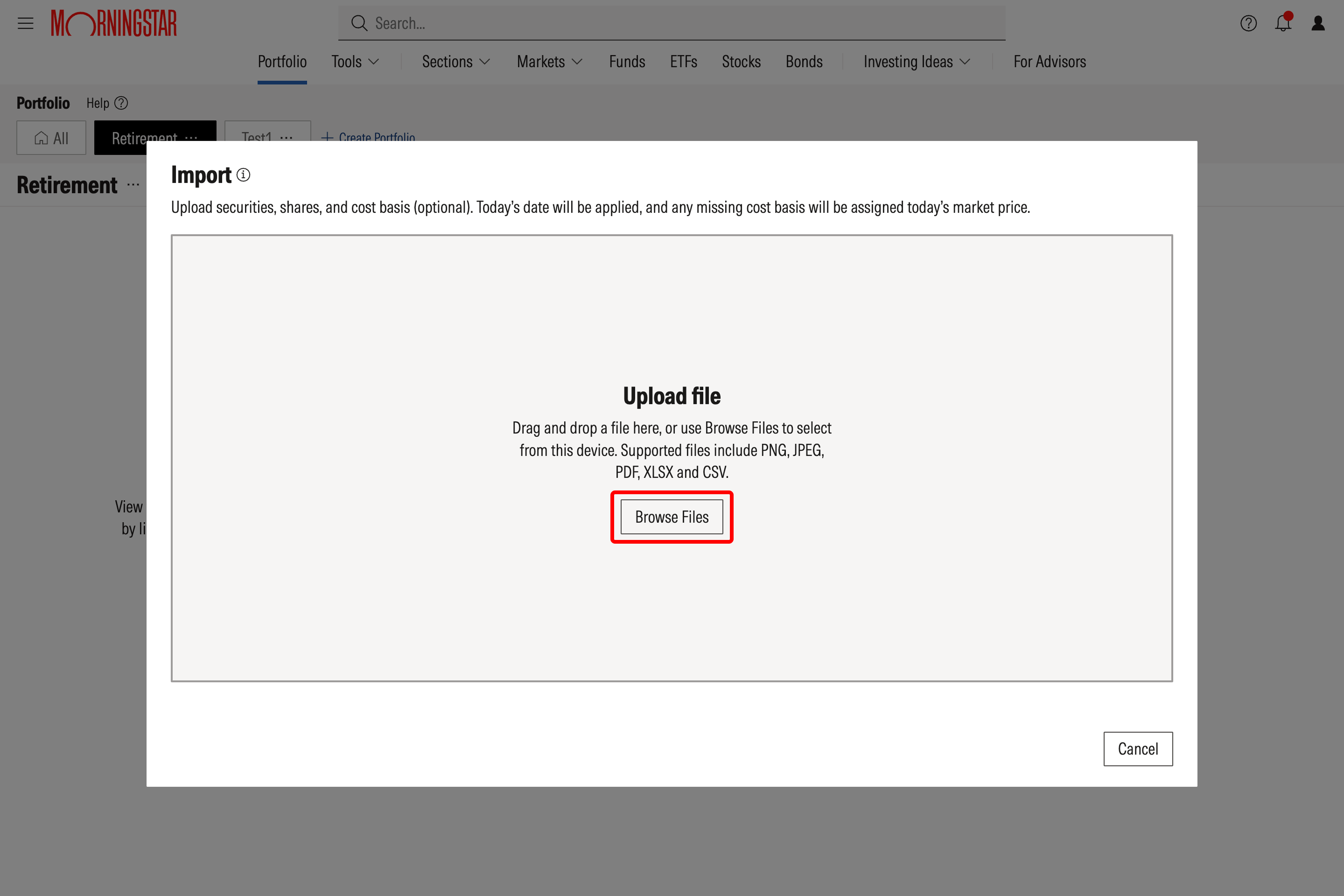
From here, you can select the Browse Files button to upload a file; PNG, PNG, JPG, JPEG, PDF, XLSX, CSV, TXT files are all accepted. For the most accurate import, your file should contain the following and be well labeled:
• Ticker symbols or security names for investments publicly traded on US exchanges (stocks, mutual funds, ETFs, and money market funds). Individual bonds are not accepted.
• Quantity of shares for each holding
• Cost basis or purchase price
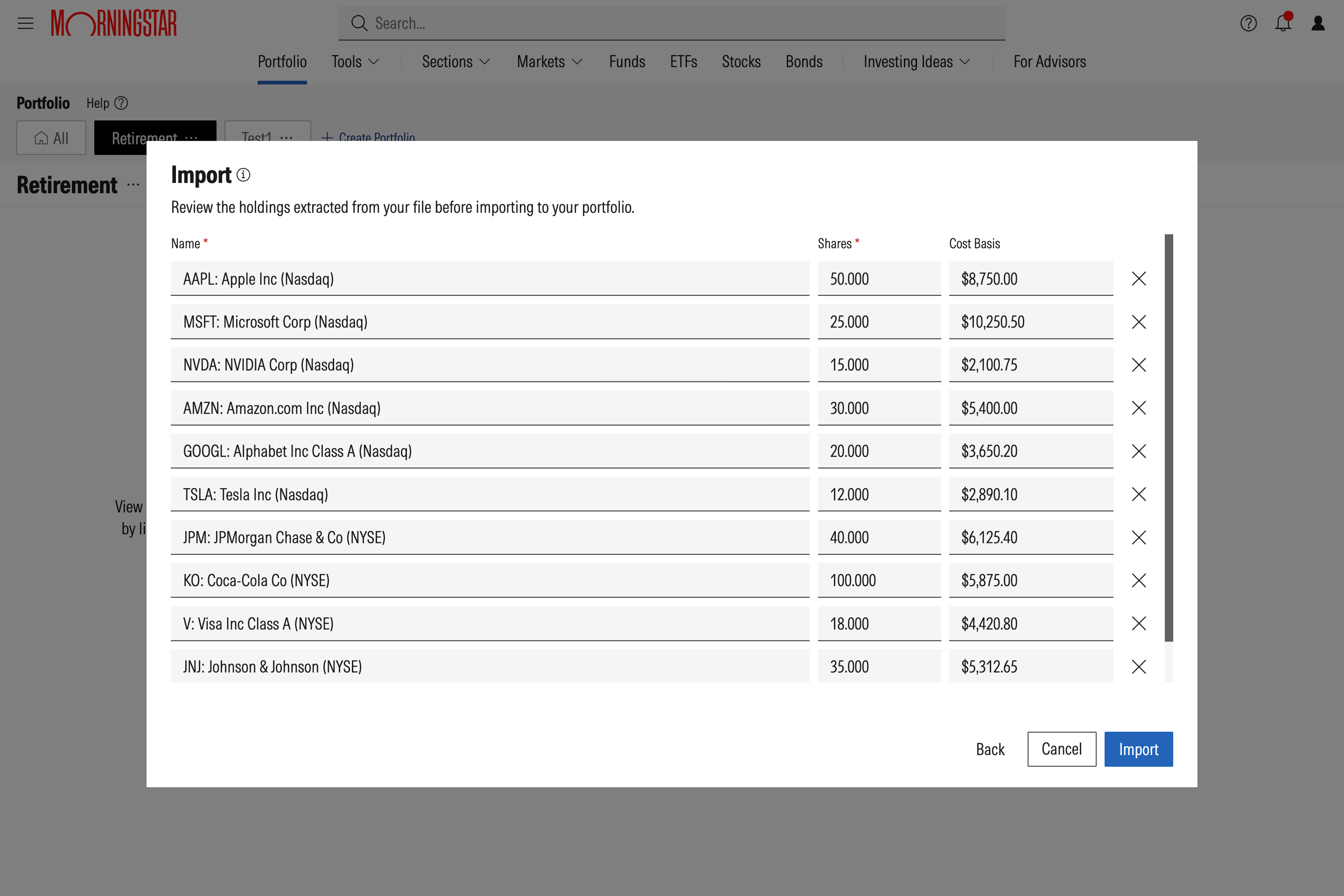
2. Review your imported holdings
Before your holdings are added, you'll have an opportunity to review the imported information and make corrections to the quantities and cost bases listed. You can also select the X to the right of each holding listed to prevent it from being added to your portfolio.
While the name/ticker and quantity of shares are required, including cost basis is optional but strongly recommended. If no cost basis is provided, the current market price will automatically be applied as the purchase price. This may reduce the accuracy of any performance-related portfolio analysis.
Important notes
- Import Holdings adds securities as new holdings. All securities added via the Import feature will be assigned today’s date. (You can correct this information after the import is complete.)
- The Import feature also does not update or replace information for holdings that already exist in a portfolio. If your file contains holdings that are already represented in your portfolio, they will be duplicated and uploaded as separate positions.
- For best results, we recommend using the Import feature via desktop.
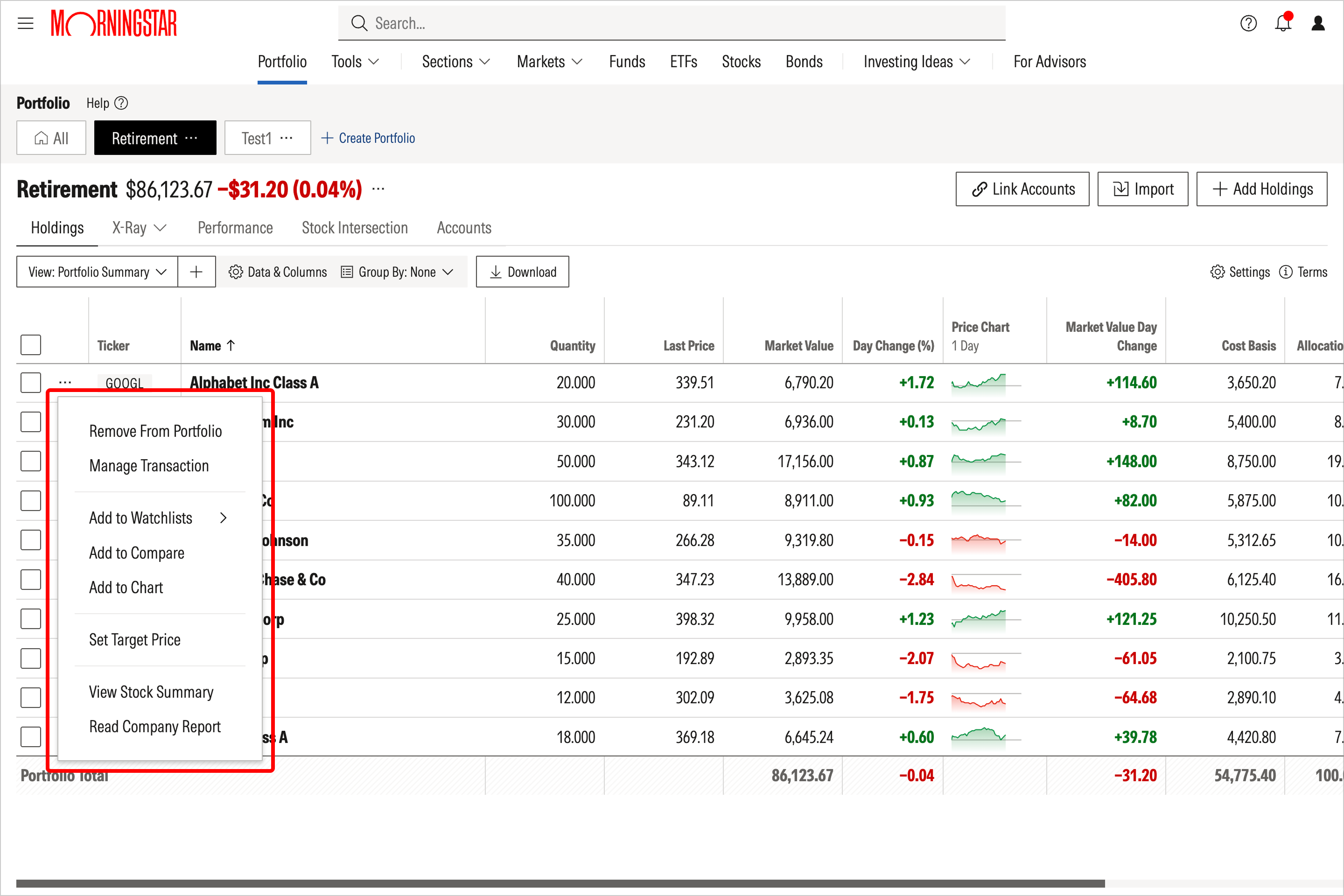
- After the import is complete, you can edit any holding by selecting the Actions menu (ellipsis icon) to the left of the ticker and updating details such as purchase date, cost basis, or share quantity. You can also use the Actions menu to delete any duplicated holdings.

 United States