
Target price notifications
Learn how to set, manage, and view notifications for a target price to help you know when to buy, sell, or hold individual stocks.
A target price lets you set your ideal buy and sell prices for individual stocks; you can create your own targets or use Morningstar ratings as a threshold. While you can only have one Buy target and Sell target for each stock, you can set targets for an unlimited number of stocks.
You’ll be notified after market close when your targets are met. Targets you set will reflect prices at close of day; they will not reflect intraday price changes.
Where to set and edit a target price
You have the option to set a stock’s target price in the following Morningstar Investor tools and features:
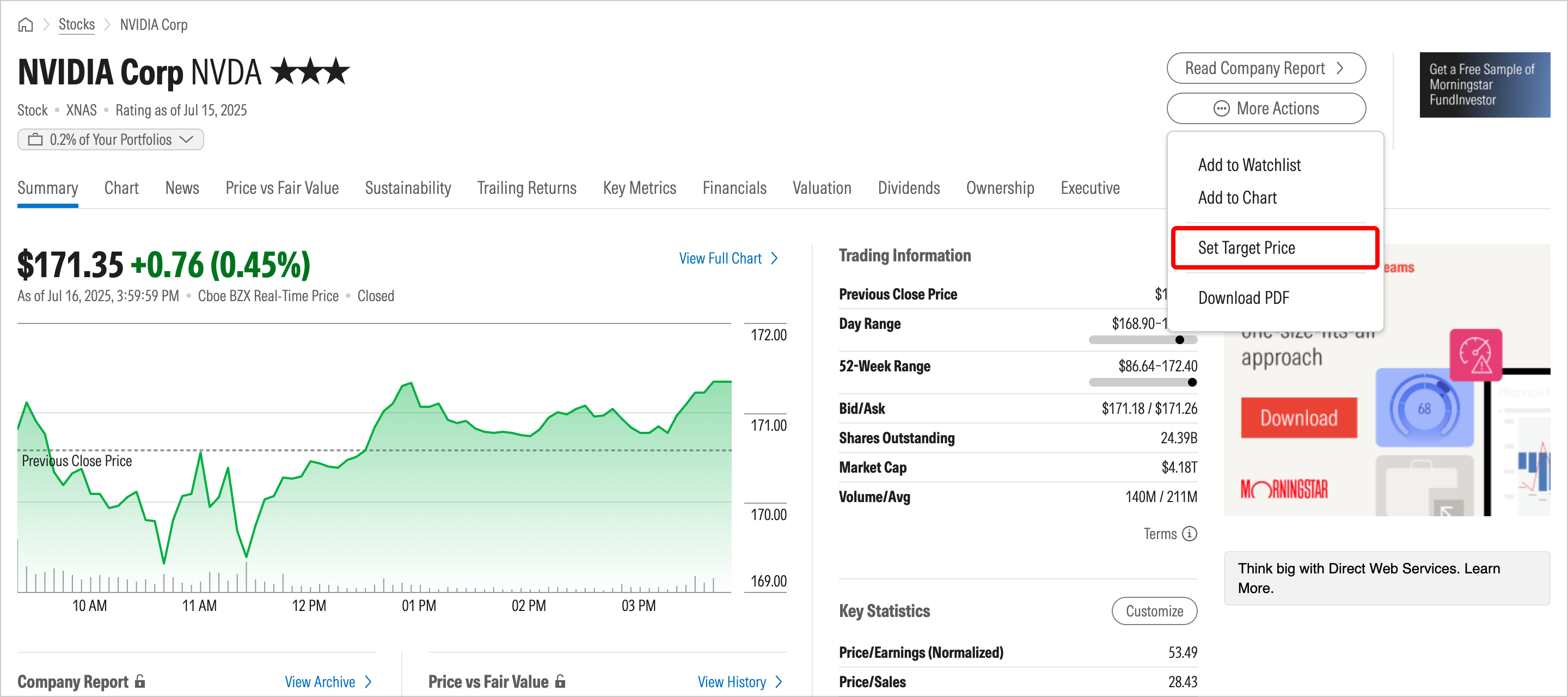
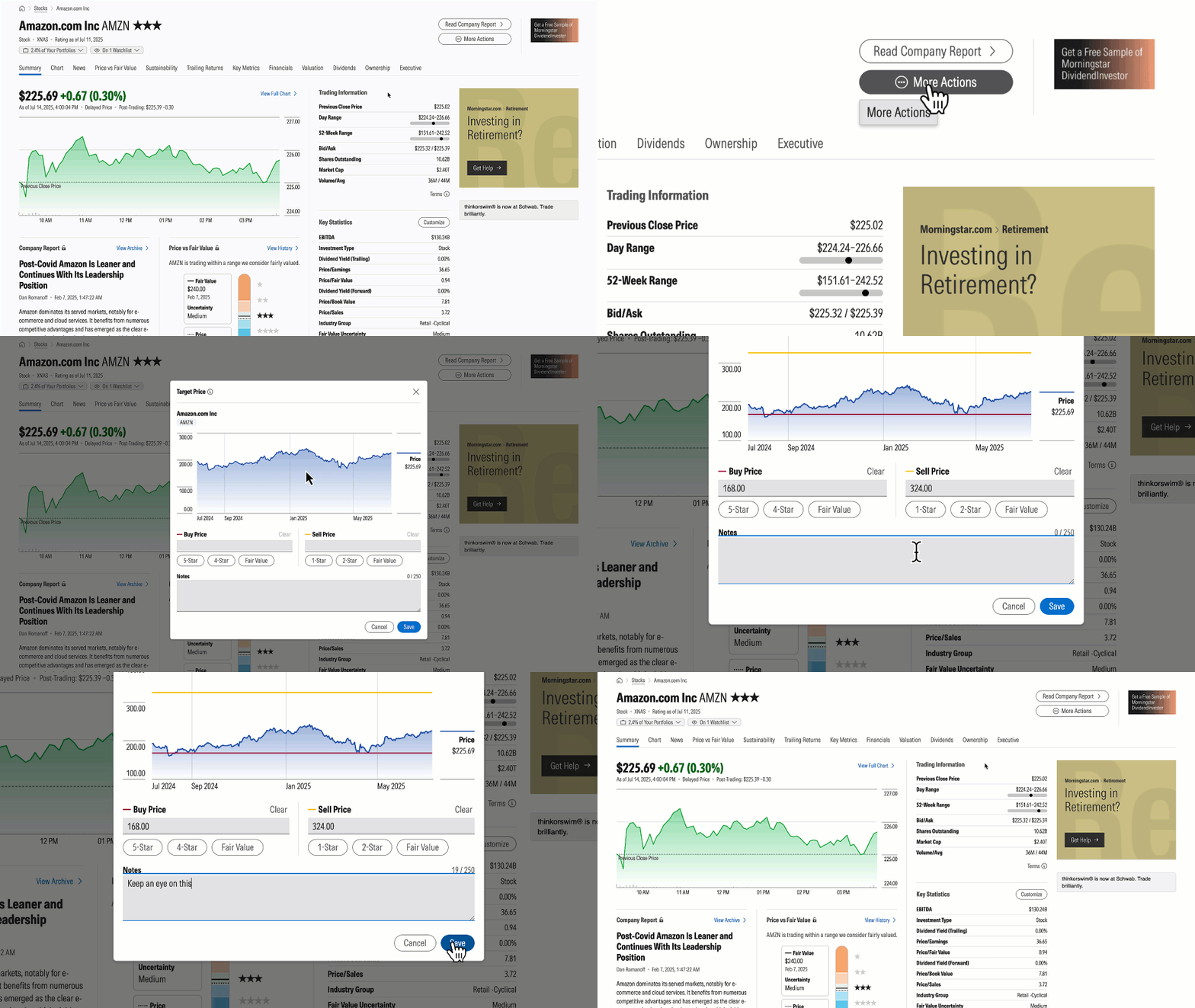
- Stock pages (via the More Actions button)
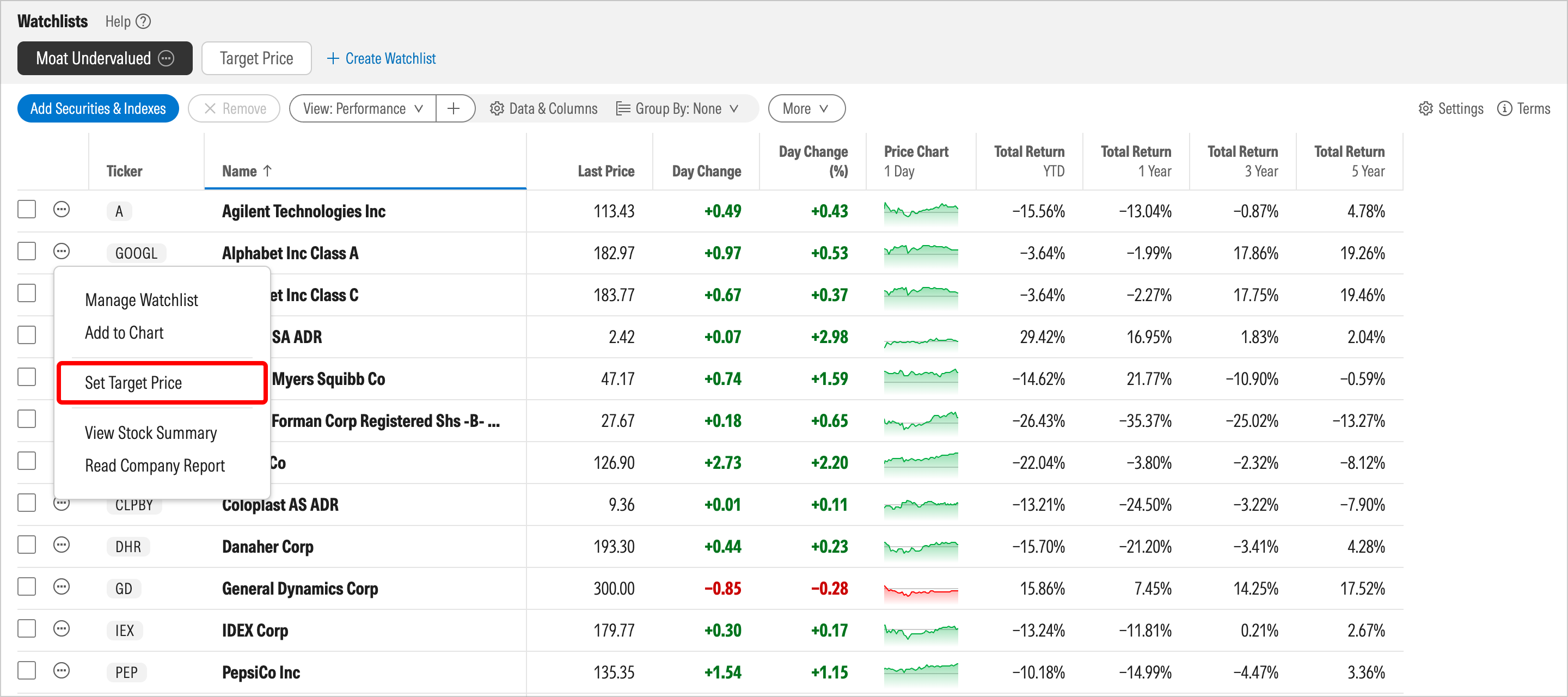
- Watchlist views (via the ellipsis next to listed stocks in the far left-hand side of each view)
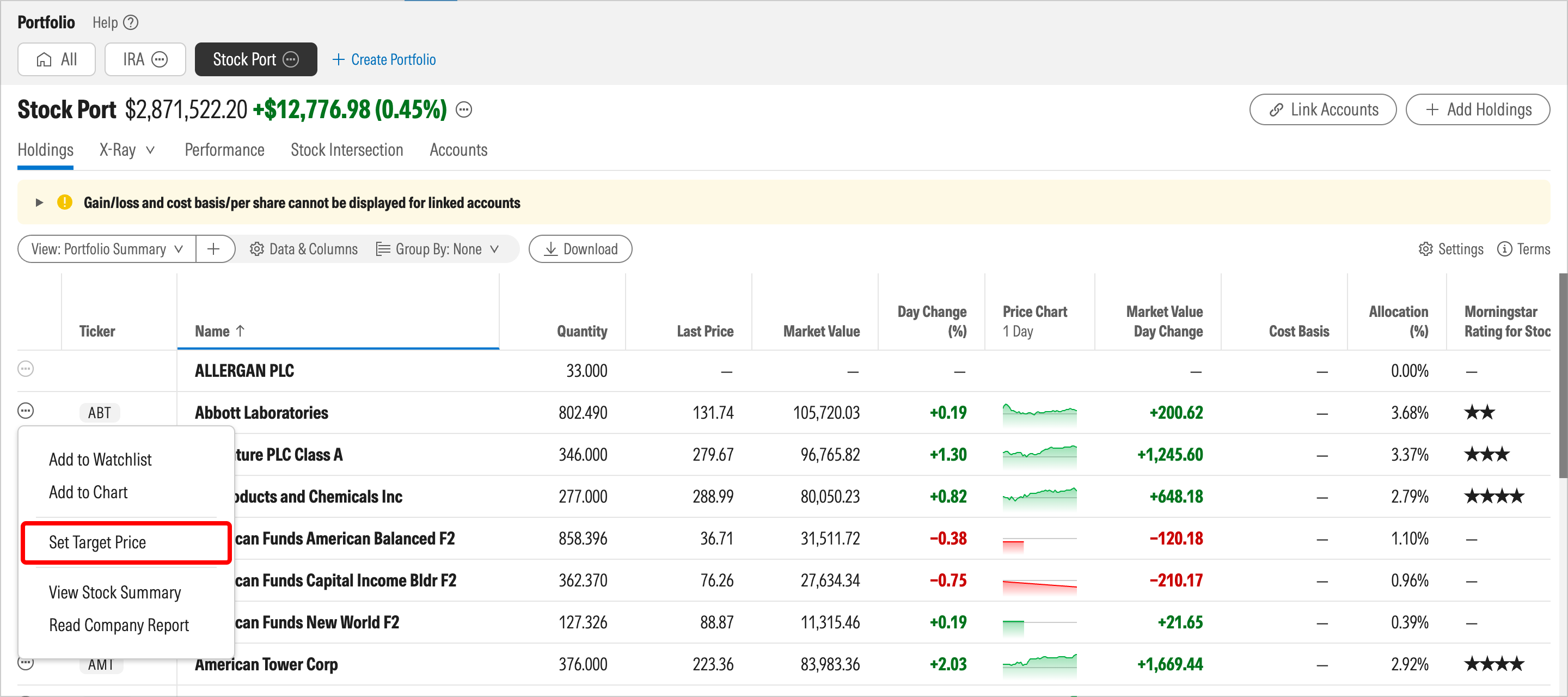
- Portfolio views (via the ellipsis next to listed stocks in the far left-hand side of each view)
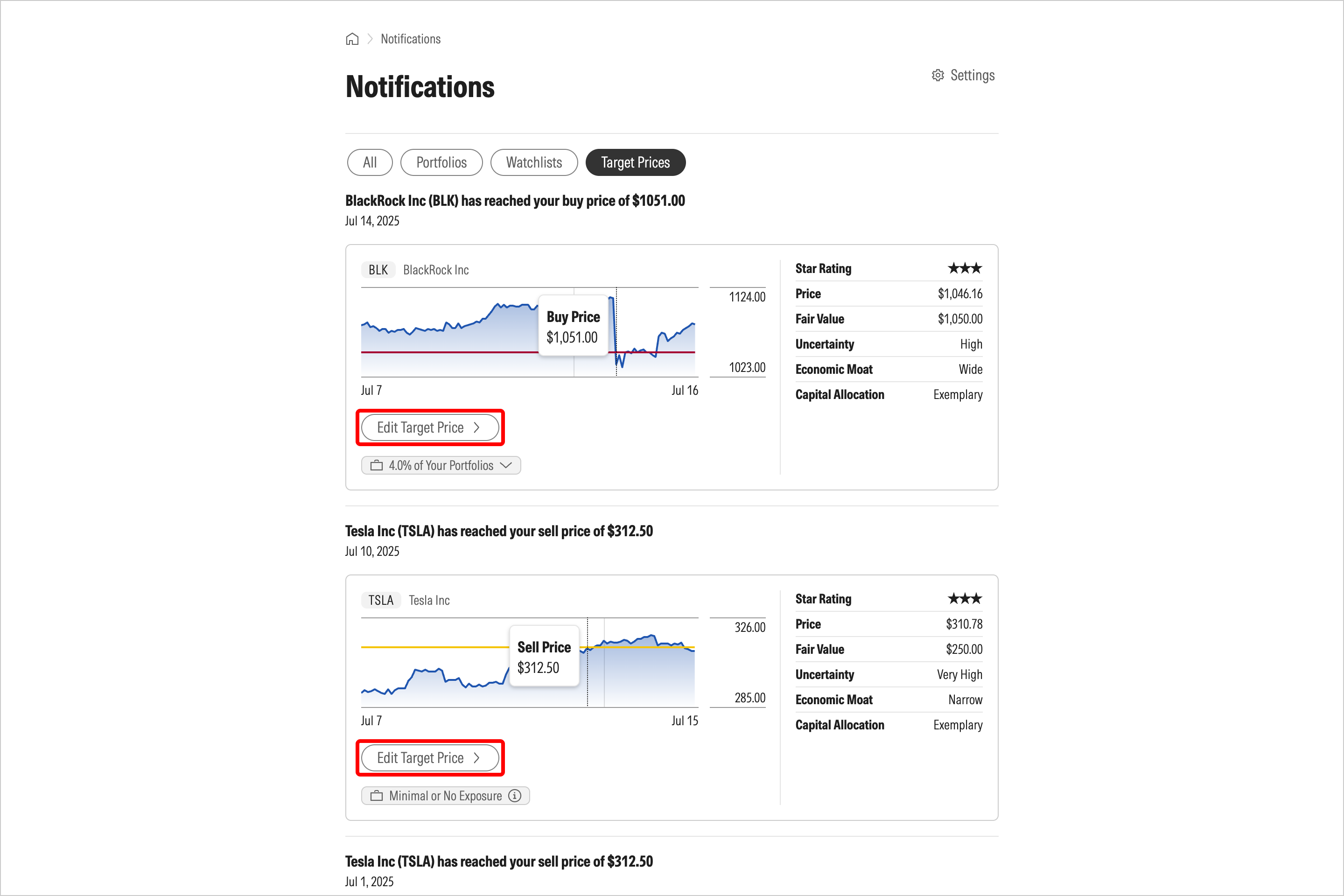
- Notifications feed (via the Target Price tab)
How to set a target price
Select Set Target Price from the menu. This will open up a modal offering three entry fields:
- Buy Price
- Sell Price
- Notes
To enter a Buy target, you can either manually enter a figure, or simply select the 5-Star, 4-Star, or Fair Value buttons to populate the current price associated with each.
To enter a Sell target, you can either manually enter a figure, or simply select the 1-Star, 2-Star, or Fair Value buttons to populate the current price associated with each.
As you set your targets, a line corresponding to the value will appear in the chart next to the current Price.
You can enter an optional Note of up to 250 characters when entering targets, with any pertinent details that will help you keep track of the thinking that helped you arrive at the Buy/Sell target price you set. This Note is bound to the target value and can be edited at any time via the paper clip icon in watchlist and portfolio views.
When you're happy with your price target details, click Save.
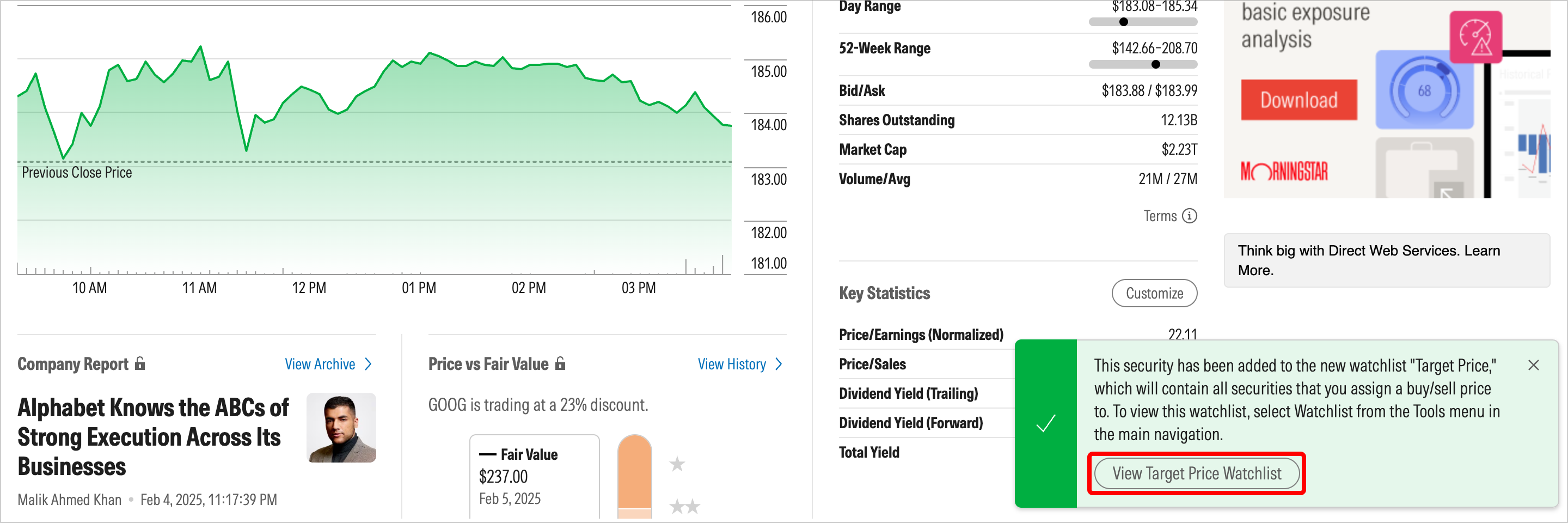
How to create and edit a Target Price watchlist
Once you set a target price, a dedicated watchlist will be created. This is where you can keep track of and modify existing targets.
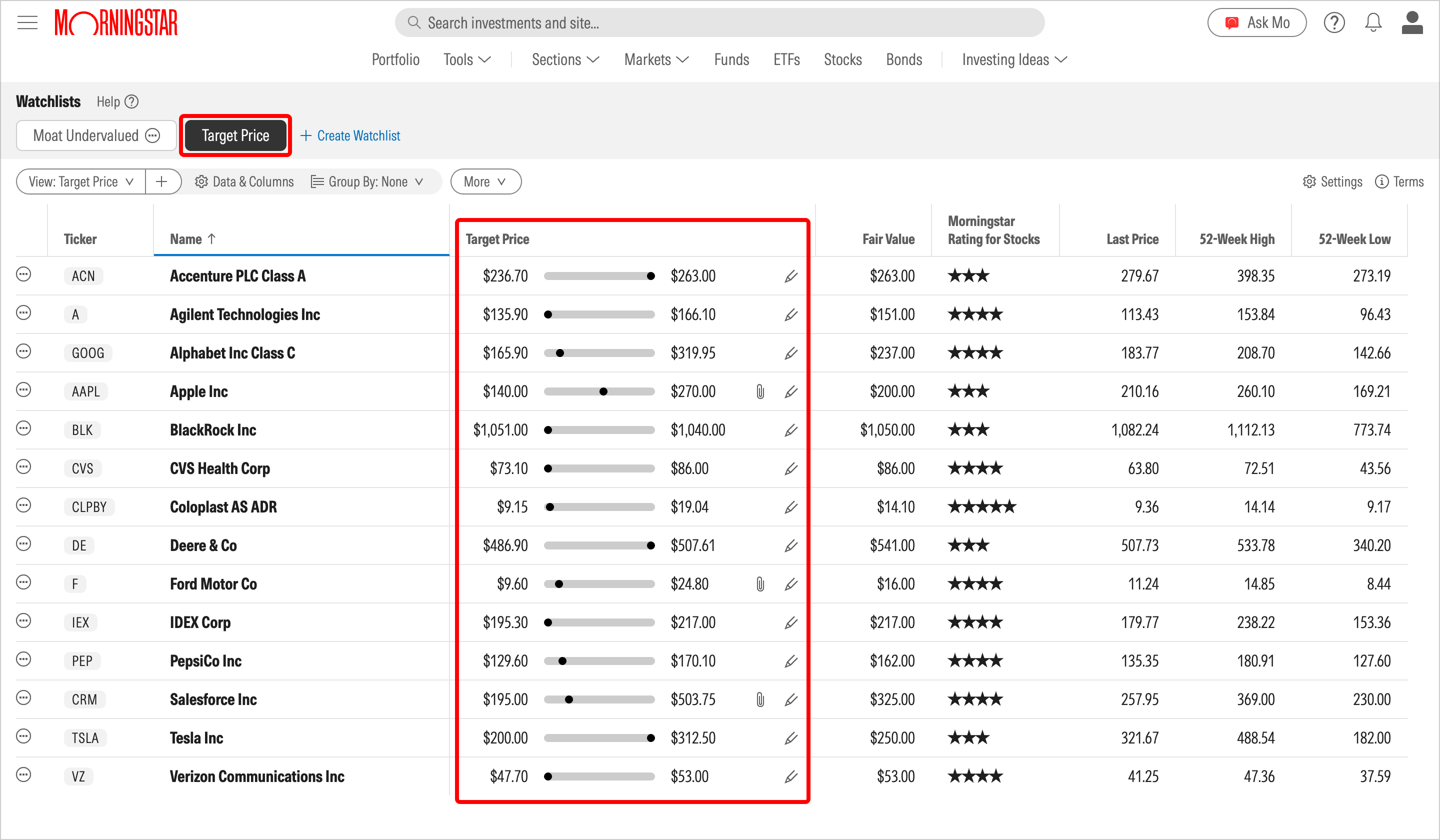
The default view for the Target Price watchlist includes the following columns:
- Symbol
- Name
- Target Price (this new data point can also be added to other watchlist or portfolio views)
- Last Price
- Fair Value
- Star Rating
- 52 Week High/Low
You can either keep the default view in place or apply other Morningstar views or custom views as desired per standard watchlist functionality. You can also apply the Target Price view to other watchlists you have created.
View target price notifications
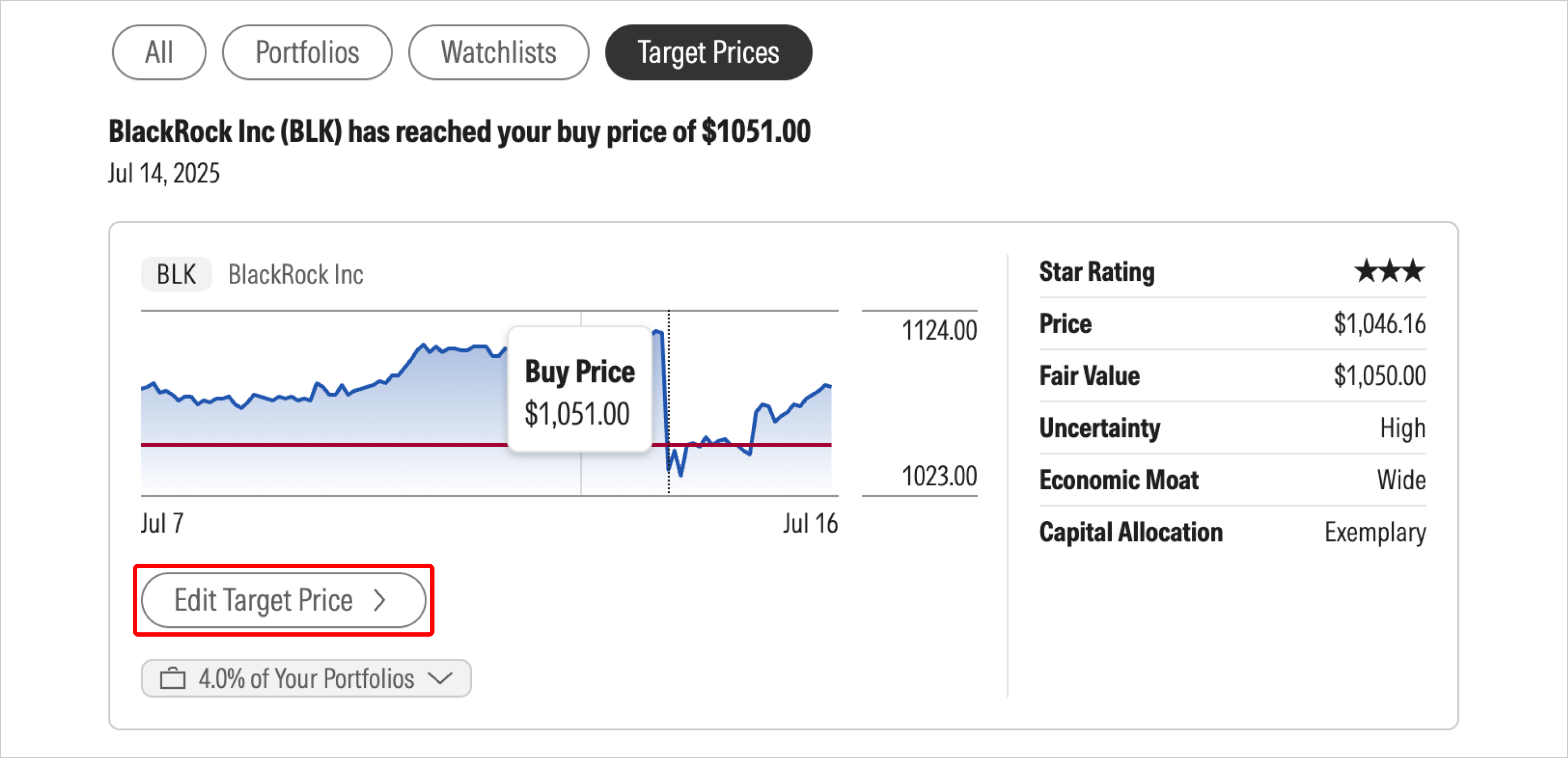
At market close each day, our notifications system will look at stock end-of-day prices and align those prices with the targets you have set. When a target has been met, you will see a security card appear in the Price Target tab within your notifications feed.
If you wish to edit a set target, click Edit Target Price under the chart.
If you have opted in to receive email notifications, the morning after your target has been met, you’ll see a notification in your inbox by market open.

 United States