
Editing data and columns in Screener
Learn how to add, remove, and arrange data points.
Whether your screen is made up of your personal favorite data points or are imported from Morningstar’s pre-defined screens, you can control the data you see and the order in which columns are presented. To do so, select Data & Columns.

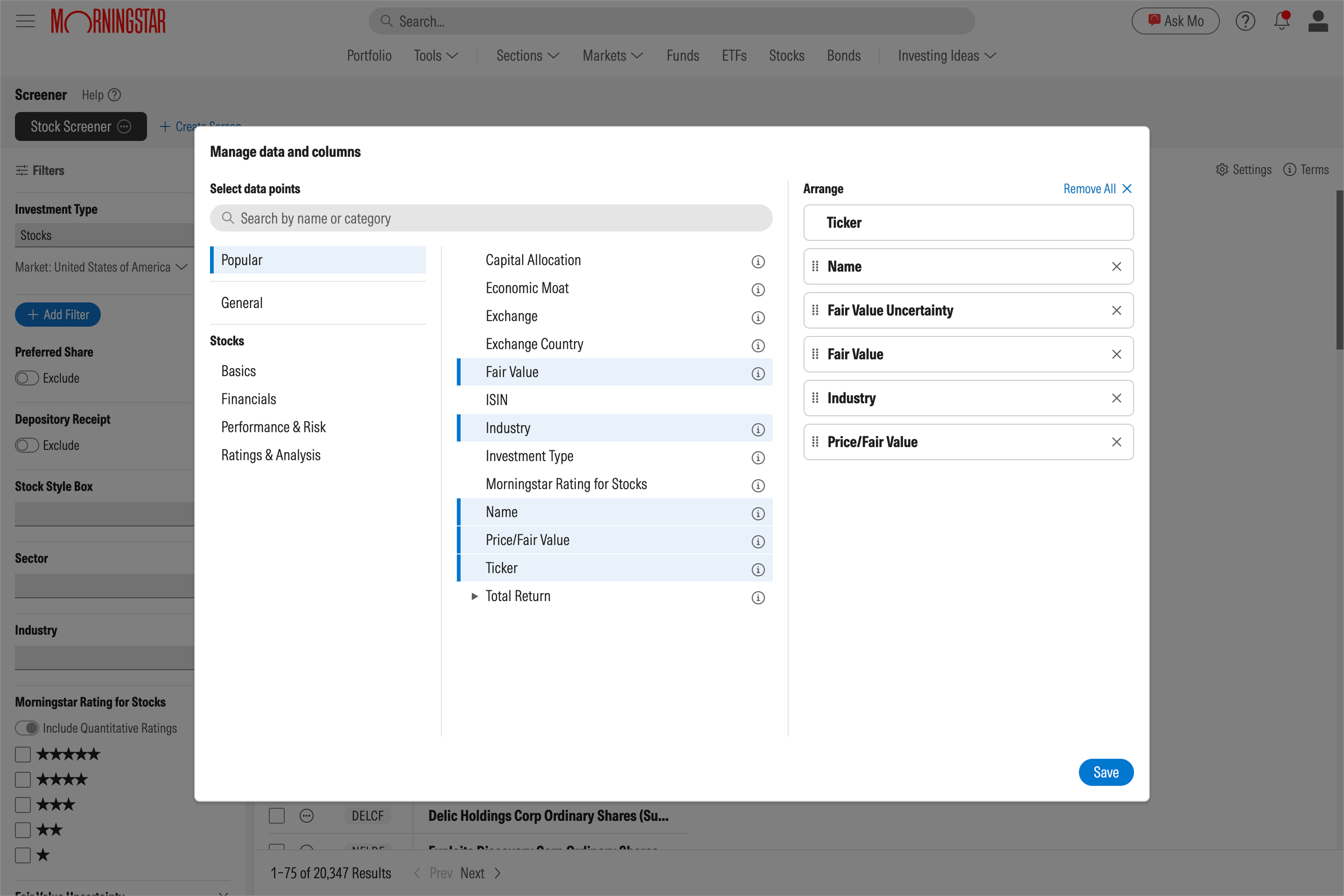
You’ll then be presented with a menu that lets you select and deselect data points, as well as arrange columns into the order of your choice.
- The left panel displays data point groups.
- The middle panel shows the data points within each group.
- The right panel displays which data points will be shown in your view, and the order in which they’ll appear. You can drag and drop to arrange the columns according to your preference.
If you'd like to save your preferences, create a custom view.

 United States